
Since Photoshop is our primary tool for editing blog photos and we’re often asked for a list of tips, here’s a condensed, practical guide to how we edit images. A few quick notes before we begin.
1. We’re not Photoshop experts: Between the two of us we’ve taken a couple of photo and digital classes years ago, but most of what we know is self-taught from experimenting. We still press buttons to see what happens and learn from mistakes. Our goal is practical adjustments that make photos look more like real life, not fancy retouching tricks.
2. We’re not pro photographers: We know basic camera settings and use white balance, but we rely on Photoshop to correct things that cameras don’t capture the way our eyes see them. The edits we make are intended to present a truer representation of a scene rather than to mask poor technique.
3. Photoshop isn’t the only option: We use Photoshop because it’s comprehensive and familiar, but there are less expensive or free alternatives that handle basic edits—Photoshop Elements, iPhoto, Picasa, GIMP, and others. We mainly describe Photoshop steps because that’s what we use most.
Now for the essentials: the basic adjustments we typically apply to most blog photos. These are small tweaks to make images closer to what we saw in person—nothing extreme. We’ll use a photo of Clara and her dollhouse as an example. Here’s the straight-out-of-camera shot:
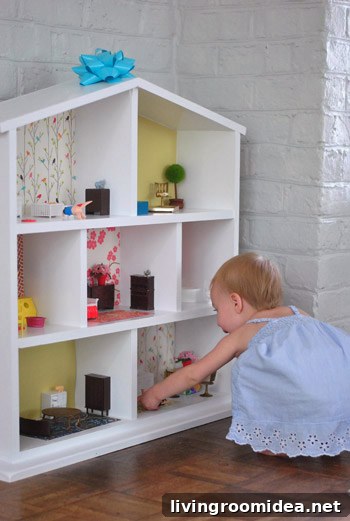
Because our living room has decent natural light and we white-balanced beforehand, this shot is already OK. Still, we open it in Photoshop to refine it.
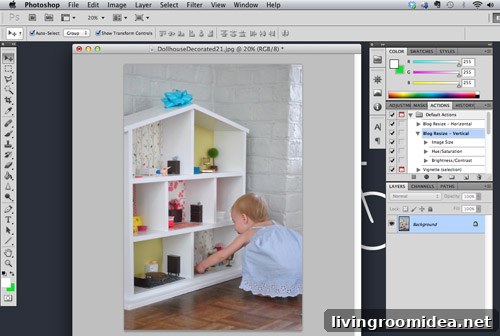
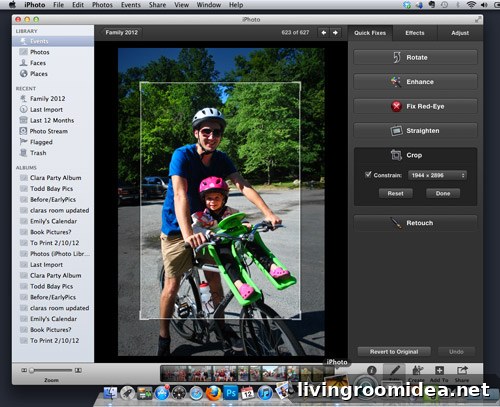
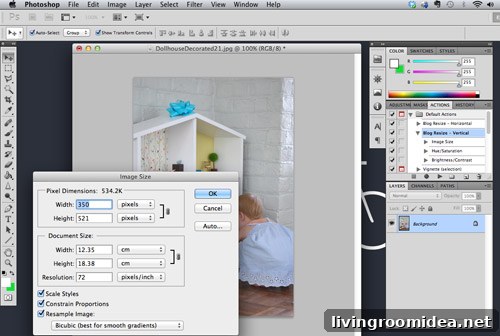
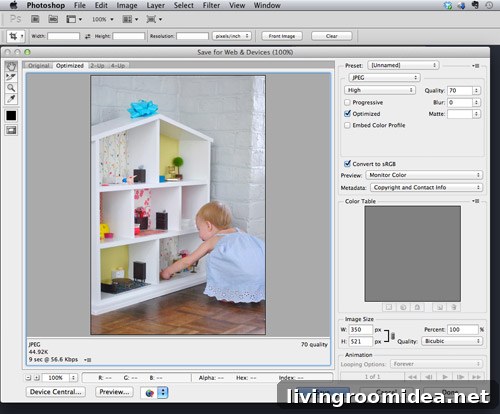
The first step is resizing. The image opened at full size, which is far too large for the web and would slow page load times. We use Image > Image Size (Command+Option+I on Mac) and set the resolution to 72 dpi and the width to our chosen web size—350 px for vertical images and 500 px for horizontals. Keep “Constrain Proportions” checked to avoid distortion.
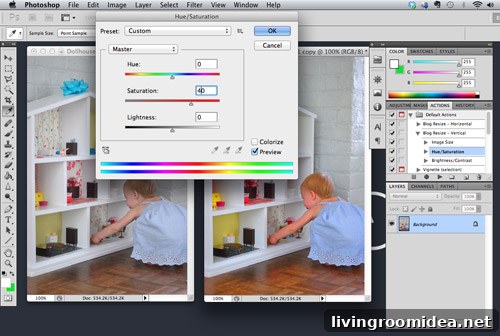
Next, we slightly increase color saturation to restore the vibrancy that digital photos often lack. Go to Image > Adjustments > Hue/Saturation (Command+Option+U) and add a modest amount—typically around +10—so colors look livelier without appearing oversaturated.
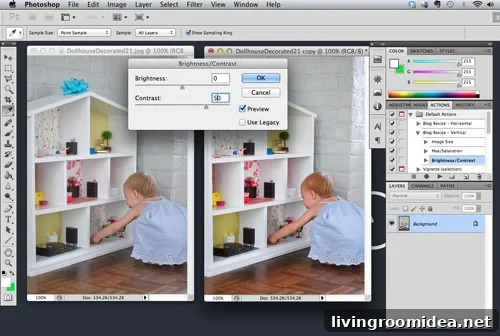
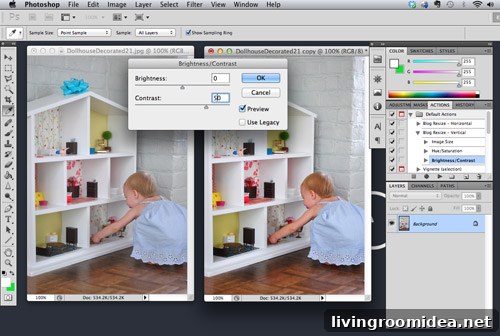
We also boost contrast a little at Image > Adjustments > Brightness/Contrast to keep the image from looking flat after resizing and compression. A small adjustment (around +10) usually does the trick—too much causes blown-out highlights or overly dark shadows.
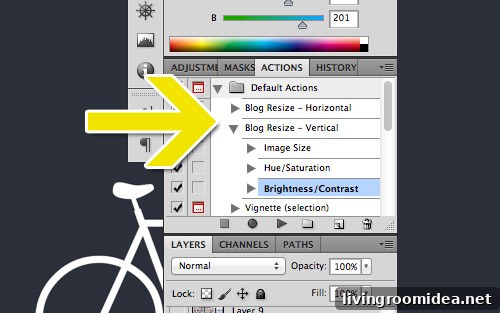
Because we perform the same set of edits repeatedly, we created custom Photoshop Actions (one for vertical, one for horizontal) to automate resize, saturation, and contrast. To create an action, open the Actions panel (Window > Actions), click New Action, hit Record, perform the edits, then hit Stop. Play the action on future photos to apply the steps instantly.
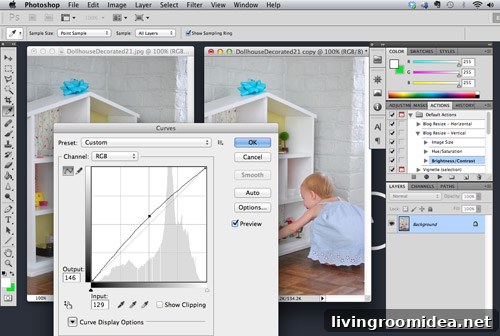
For about half of our photos those adjustments are sufficient. When we need a little more, we use Curves (Image > Adjustments > Curves or Command+Option+M) to fine-tune exposure while keeping shadows intact—dragging the middle of the curve up slightly brightens without washing out the dark areas.
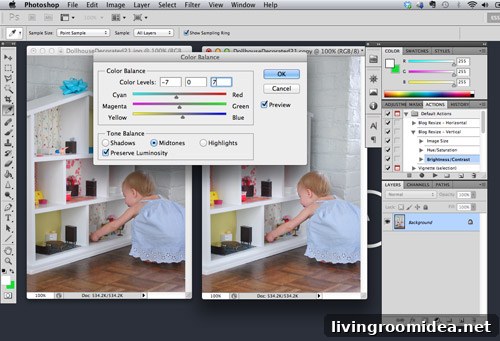
We also do minor color balancing when needed. If an image feels too warm or too cool, use Image > Adjustments > Color Balance (Command+Option+B) to nudge the tones toward cyan/blue or yellow/red slightly. Our goal is a natural look, so adjustments are subtle.
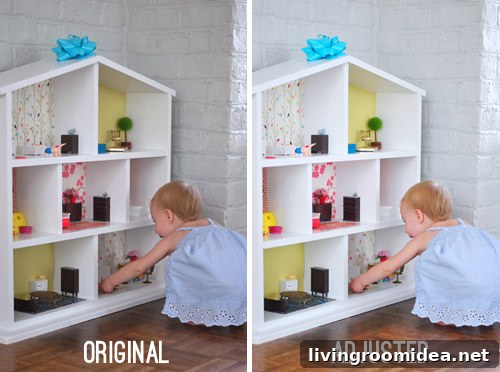
Here’s a comparison showing the cumulative effect of these basic tweaks. The differences can be nuanced: brighter whites, livelier colors, and more accurate skin and object tones—things that make the photo feel closer to real life.
Finally, save for web using File > Save for Web & Devices (Shift+Command+Option+S) and export as a compressed JPEG. This reduces file size for faster loading, but it also slightly affects color and contrast—which is why we make the earlier adjustments first.
Those basic steps are our go-to workflow. If you want a different aesthetic—warmer vintage tones, high-contrast punchy looks—adjust the same controls to suit your vision. Experiment and find what feels right.
Beyond basic edits, we also use Photoshop to help make design decisions by visualizing changes directly on photos. For example, if we’re considering a new headboard, we select its area using tools like the Polygonal Lasso, Magnetic Lasso, or Magic Wand depending on the shape and contrast. These selection tools let us isolate the headboard for color or pattern changes.
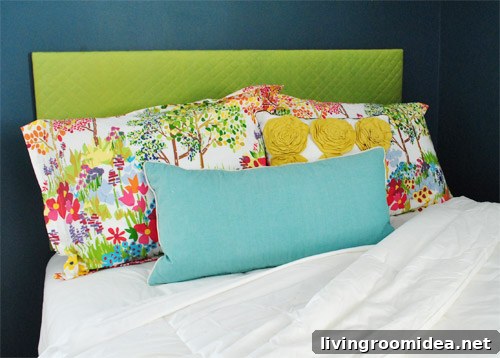
With the headboard selected, use Hue/Saturation to quickly test different colors, or add a new layer and fill it with color for a bolder change. To try a pattern, drag a pattern image into the document on its own layer, then add a Layer Mask while the headboard selection is active. The mask will reveal the pattern only where the headboard is selected.
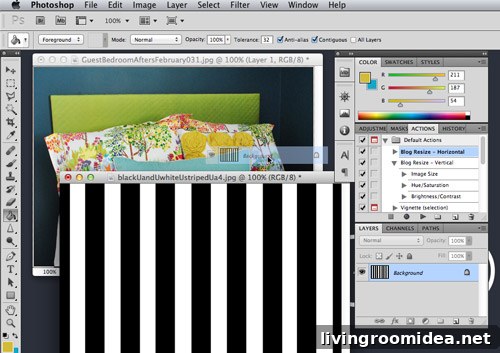
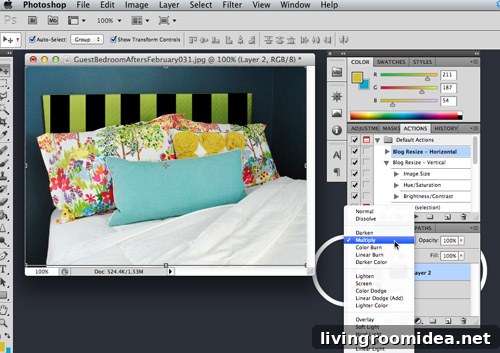
If you want to reposition or scale the pattern without changing the mask, unlink the image layer from its mask by clicking the chain icon between the thumbnails, then transform the pattern. You can also try different layer blending modes—Multiply often helps the top layer interact more naturally with texture and underlying tones.
That covers our common Photoshop tricks: resize, modest saturation and contrast boosts, curves for exposure, subtle color balance, saving for web, and using layers/masks to visualize design changes. There’s a lot more to learn, so if you have specific questions or want a deeper dive into a particular technique, ask and we’ll consider a follow-up post with examples.